Have you heard of Jellyfin? I highly recommend it. Do remember when using the mobile app that it needs permissions to run in the background such that it can automatically play the next song. I am testing with VBR audio and standard definition videos.
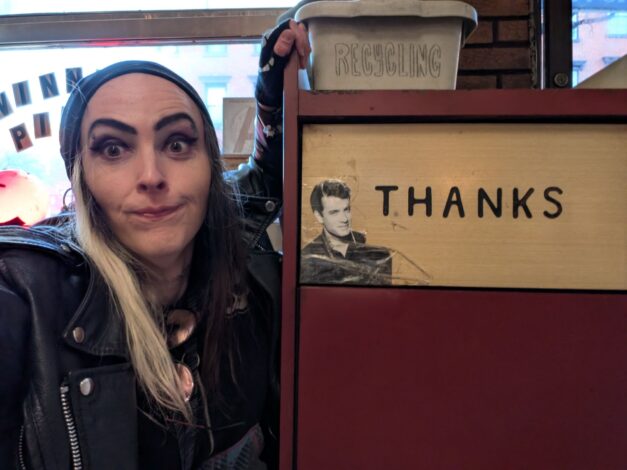
Vinnie’s Pizza, Brooklyn, Tom Hanks Trash Can
Posted by Rose Bush on February 9th, 2026
MAXIMUM PC SPECIAL ISSUE SUMMER 2006 Rip Perfect MP3s
Posted by Rose Bush on February 2nd, 2025
SPECIAL ISSUE SUMMER 2006
Rip Perfect MP3s
WHAT YOU’LL NEED
An audio CD
Exact Audio Copy (free, www.exactaudiocopy.de)
https://web.archive.org/web/20090710072542/http://www.exactaudiocopy.de/eac-0.99pb5.exe Version from around the time the article was published.
LAME encoder (free, http://mitiok.cjb.net, http://www.rarewares.org)
https://web.archive.org/web/20060612201440/http://mitiok.maresweb.org/lame-3.97b.zip Version from around the time the article was published.
Do you listen to audio CDs in your CD-ROM drive, or carry a portable CD player while you jog? Of course not. You rip your audio CDs to MP3, and then transfer the files to your hard drive, your MP3 player, and your laptop. Because ripping audio files is quite pedestrian these days, you probably know how to do it. But do you know how to do it the Maximum PC way? Here’s how to rip audio files so they’ll sound as good as uncompressed WAV files.
STEP1 | DOWNLOAD EAC AND LAME
Exact Audio Copy is our favorite tool for ripping audio CDs because it’s dead accurate, produces flawless rips, and warns you of the presence of potential problems—think skips, clicks, or pops. It’s not the fastest solution, but we’ll trade accuracy for speed every time. Download EAC. Next, download the open-source LAME MP3 encoder, so you can encode your ripped files. Unzip both programs into the same folder on your hard drive.
STEP2 | INSTALL EAC
EAC’s setup wizard will automatically start when you install the program. Choose the option “I prefer to have accurate results.” Skip the step to install and configure LAME by removing the checkmark— we’ll install it later. You have to enter an email address in the next screen to gain access to the Freedb CD database, which will automatically populate your MP3s with artist, album, and track-name info. Choose the option labeled “I’m an expert…” and click Finish.
STEP3 | Configure EAC
Choose “EAC options” from the EAC menu. Deselect the option labeled “Lock drive tray….” so you can open the drive tray should EAC hang on a scratched CD. Leave the other options at their defaults. Click the Tools tab and place a checkmark next to “On extraction, start the external compressors…” (EAC will read the next track while the compressor is working on the previous track, speeding up the ripping process). Click OK.
STEP4 | COMPRESS AND ENCODE
Choose “Compression options” from the EAC menu and click the External Compression tab. Place a checkmark next to “Use external program for compression,” choose “Use Defined Encoder” from the drop-down menu, browse to the folder where you downloaded LAME, and click lame.exe. We’re going to encode our MP3s using variable bit rate (VBR), and we want LAME to write metadata (artist, track title, etc.) to the ID3 tags, so type this exact text into the “Additional command line options” field:
|
1 |
-V4 --vbr-new --add-id3v2 --pad-id3v2 --ta "%artist%" --tt "%title%" --tg "%genre%" --tl "%albumtitle%" --ty "%year%" --tn "%tracknr%/%numtracks%" %source% %dest% |
|
1 |
-6 -V -T "ARTIST=%artist%" -T "TITLE=%title%" -T "ALBUM=%albumtitle%" -T "DATE=%year%" -T "TRACKNUMBER=%tracknr%" -T "GENRE=%genre%" -T "COMMENT=%comment%" -T "BAND=%albuminterpret%" -T "COMPOSER=%composer%" %haslyrics%--tag-from-file=LYRICS="%lyricsfile%"%haslyrics% -T "DISCNUMBER=%cdnumber%" -T "TOTALDISCS=%totalcds%" -T "TOTALTRACKS=%numtracks%" %hascover%--picture="%coverfile%"%hascover% %source% -o %dest% |
Ignore the rest of the options here, but click the ID3 Tag tab and remove any checkmarks. Click OK.
STEP5 | RIP AWAY!
Now you’re ready to start ripping. Drop a CD into your optical drive and give EAC a moment to download information about it from Freedb. In the main EAC window, choose the tracks you wish to rip and then click the MP3 icon in the vertical toolbar. Browse to the folder where you want the files stored and click Save.
MAXIMUM PC | 17
As per HydrogenAudio;
“--vbr-new enables the modern Variable Bitrate (VBR) routine in the LAME MP3 encoder, which provides better efficiency and quality compared to the old method (--vbr-old). Since LAME 3.98, this is the default setting. It is generally used with the -V switch (e.g., -V 2 --vbr-new) to determine the quality.”
ST-9616 Air Compressor Users Manual
Posted by Rose Bush on November 8th, 2024
Outlook Search tags
Posted by Rose Bush on November 7th, 2023
isread:no
importance:high
hasattachments:yes
And if you are looking for the full list: try here https://support.microsoft.com/en-us/office/how-to-search-in-outlook-d824d1e9-a255-4c8a-8553-276fb895a8da
Taco Bell Ringtone SDIF
Posted by Rose Bush on June 2nd, 2023
Hi
Here’s the ringtone from Taco Bell you requested for your iPhone. Add this to your iPhone in a few easy steps.
1. Save the attached file to your local drive.
2. Open iTunes
3. Select ‘Add to Library’ from the ‘File’ menu.
4. Select the attached file (name of file)
5. Synch your iPhone with your MAC/PC
6. The ringtone will now be available under ‘Sounds’ within the Preferences Control Panel on your iPhone.
Thanks and make sure to check out http://m.tacobell.com from your mobile device for more ringtones and apps!
SDIF_Bong.m4r
My_Bicep.m4r
Crunch_Boy_Remix.m4r
Rice_ring_ring.m4r
Hunger_Calls.m4r
Pointing your domain to a CDN common thoughts and questions
Posted by Rose Bush on September 1st, 2016
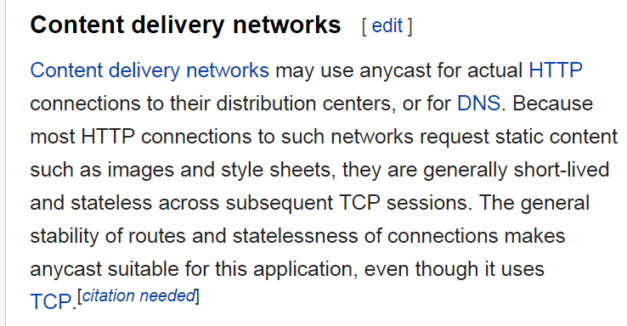
When looking to host your site on a Content Delivery Network, there are a few questions as to how it works. With some providers, you are supplied a CNAME that utilizes anycast to resolve to a different IP depending on where in the world you are:
As an aside, due to the above behavior, a large file pulled through the CDN may hit numerous POPS. If each POP is configured to then pull the full file from the hosted origin, you can incur a LOT of traffic. Think a 44GB video file was rough, image paying for it being transferred 120 times just for one person to watch it. You’re frontloading the content, but still, that’s a lot of data. I digress.
With that, sure, you can resolve the www CNAME to the supplied address. You then ask yourself how do I point my root domain to the CDN. If you use your locally resolved IP address and 301 redirect to the www. CNAME, you only incur the one call to the particular IP. But what if you want the root domain to leverage the abilities of the CDN? You cannot simply point the root domain to the CNAME, that’s bad juju: http://serverfault.com/questions/430970/cname-for-top-of-domain
In the case of other CDN providers, you use their Name Servers, and it is at these nameservers that root domain flattening occurs. That is to say that they perform the resolution at the name server and send out that IP addresses in response to the lookup. This comes with caveats as well. The flattening CloudFlare utilizes gives the TTL the highest value found, not the lowest as you may expect. See here: https://support.cloudflare.com/hc/en-us/articles/200169056-CNAME-Flattening-RFC-compliant-support-for-CNAME-at-the-root
https://gist.github.com/cben/012c1fdbbb69d76cedaf
Solved dotDefender An error occured. Action: get_site_list Exception: Invalid Response or Action: get_xpath Exception: Invalid Response
Posted by Rose Bush on July 6th, 2016
Solved dotDefender An error occured. Action: get_site_list Exception: Invalid Response or Action: get_xpath Exception: Invalid Response
The full error:
Can’t init python Can’t import module can’t init python Traceback (most recent call last): File “C:\Program Files\Applicure\dotDefender for IIS\cgi-bin\WebServiceLib.py”, line 1, in from WebService_Utils
import * File “C:\Program Files\Applicure\dotDefender for IIS\cgi-bin\WebService_Utils.py”, line 1, in from WebService_OS import * File “C:\Program Files\Applicure\dotDefender for
IIS\cgi-bin\WebService_OS.py”, line 53, in from win32com.client import GetObject, Dispatch File “py26-sp\Lib\site-packages\win32com\client\__init__.py”, line 11, in import gencache File
“py26-sp\Lib\site-packages\win32com\client\gencache.py”, line 662, in __init__() File “py26-sp\Lib\site-packages\win32com\client\gencache.py”, line 58, in __init__ Rebuild() File
“py26-sp\Lib\site-packages\win32com\client\gencache.py”, line 649, in Rebuild _SaveDicts() File “py26-sp\Lib\site-packages\win32com\client\gencache.py”, line 65, in _SaveDicts f =
open(os.path.join(GetGeneratePath(), “dicts.dat”), “wb”) IOError: [Errno 13] Permission denied: ‘C:\\Windows\\TEMP\\gen_py\\2.6\\dicts.dat’
Solution:
I was logged into the admin site under an account that had been added post install using the add_user_permissions_IIS7.bat script. It seems this script misses adding some permissions. In my case I granted permissions to my user to the C:\Windows\Temp\gen_py
folder. I believe I gave them write permissions.
Reset ColdFusion 10 or 11 Administrator Password Manually
Posted by Rose Bush on July 5th, 2016
If you need to reset the ColdFusion Administrator Password for ColdFusion 10 or ColdFusion 11, it is much easier than previous versions.
Windows
From the machine running ColdFusion, browse to cf_root/bin, in this case I am in
|
1 |
C:\ColdFusion10\cfusion\bin |
or
|
1 |
C:\ColdFusion11\cfusion\bin |
Right click on
|
1 |
passwordreset.bat |
and choose Run as administrator to ensure proper permissions during runtime. Enter 1 to change the password. Enter in the new password, and then re enter it to confirm. If not using RDS, you can leave the entry blank for the next two submissions, otherwise fill the RDS password in on both entries. Restart the ColdFusion Application Server and try to login. You may need to restart your browser to clear any cached session aspects that may cause issues.
Linux
SSH into the machine running ColdFusion. Navigate to cf_root/bin, in this case I am using
|
1 |
/opt/ColdFusion10/cfusion/bin |
or
|
1 |
/opt/ColdFusion11/cfusion/bin |
and run
|
1 |
java -cp cf-passwordreset.jar com.adobe.coldfusion.passwordreset.PasswordReset |
Enter 1 to change the password. Enter in the new password, and then re enter it to confirm. If not using RDS, you can leave the entry blank for the next two submissions, otherwise fill the RDS password in on both entries. Restart the ColdFusion Application Server and try to login. You may need to restart your browser to clear any cached session aspects that may cause issues.
Copyright © 2026 Edventures in Normalcy. All rights reserved.